

Editorial scope: Prepared by the FGG Editorial Team as a documentation-based explanation of magnetic-keyboard settings. The sources below were checked on October 23, 2026. This article does not present original latency measurements, a controlled hardware comparison, or model-specific hands-on test results.
Dead-zone terminology is not standardized across every keyboard brand. Top and Bottom Dead Zone usually describe regions near the ends of key travel. Stability Mode and Trigger Protection may use different algorithms; treat them as related controls only when your manufacturer documents the relationship.
Commercial disclosure: FGG sells Hall Effect keyboards referenced in our support and product resources. This article is primarily educational and does not treat minimum advertised sensitivity values as proof of better real-world performance.
Hall Effect keyboards can track key travel continuously. That makes adjustable actuation and Rapid Trigger possible, but it also means the firmware must decide which tiny movements should count as meaningful input.
That is where a dead zone can come in. In magnetic-keyboard software, a dead zone generally refers to a small part of the key's travel where movement is intentionally ignored, limited, or treated more conservatively to improve stability.
Key takeaway: A smaller dead zone is not automatically faster or better. Dead zones are primarily stability controls. The goal is to keep the keyboard responsive without allowing tiny unintended movements to create unstable input.
Important terminology note: This article discusses configurable dead zones in magnetic-keyboard software. That is different from the “input dead zone” sometimes used to describe the fixed distance between actuation and reset points on a traditional mechanical switch.
It is also different from the dead zone used with analog game-controller sticks. On a joystick, the dead zone usually ignores small inputs around the neutral position so that minor sensor noise, physical offset, or stick drift is less likely to produce unintended movement.
1. What Is a Dead Zone on a Hall Effect Keyboard?
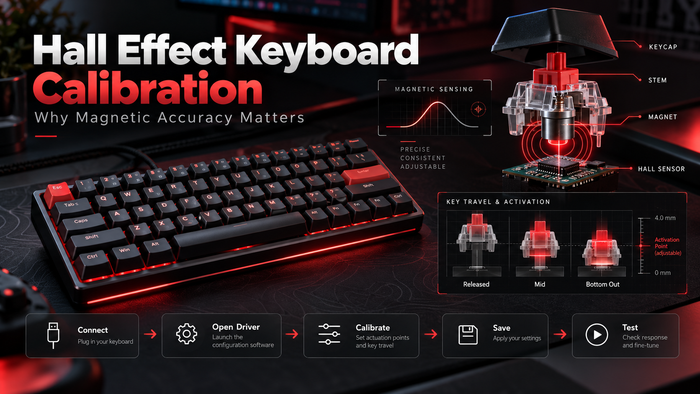
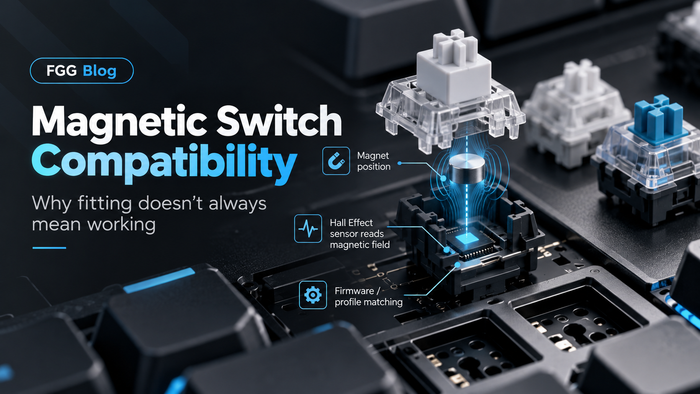
A Hall Effect keyboard determines key position by measuring changes in a magnetic field as a magnet moves relative to a sensor.
Because the keyboard can track motion throughout the key's travel, firmware can react to extremely small changes in position. That sensitivity is useful for features such as adjustable actuation and Rapid Trigger, but not every tiny movement is necessarily intentional.

A configurable dead zone defines a travel region in which firmware limits or suppresses specified state changes. Some drivers expose separate regions near the top and bottom of the stroke. A broader stability algorithm is not necessarily a dead zone, even if it addresses similar symptoms.
2. Top Dead Zone vs Bottom Dead Zone
Some magnetic-keyboard drivers separate dead-zone control into a Top Dead Zone and a Bottom Dead Zone.
The important word is some. These terms are not guaranteed to mean exactly the same thing on every keyboard.
Top Dead Zone
A top dead zone normally refers to a small region near the key's fully released position.
Depending on the firmware, the purpose may be to reduce unintended input caused by tiny movement near the top of the stroke. This can matter when a keyboard is configured with extremely shallow actuation or very aggressive magnetic sensitivity.
Bottom Dead Zone
A bottom dead zone generally refers to a small region near the bottom of the key's travel.
Some drivers use this region to help prevent unintended release near bottom-out. For a documented example, MCHOSE describes its top control as mistouch prevention and its bottom control as unintended-release prevention. Those labels describe M HUB behavior, not a guarantee about another brand.
Stability Mode is a separate optimization in MCHOSE’s Ace 68 documentation. Do not assume that enabling a stability option is equivalent to increasing a top or bottom dead zone.
Do not copy another keyboard's dead-zone value blindly. One driver's “0.05 mm Bottom Dead Zone” does not automatically mean the same value is correct — or even available — on another keyboard.
3. Dead Zone vs Actuation Point
Dead zone and actuation point are related to key travel, but they solve different problems.
| Setting | Main Question It Answers | Typical Purpose |
|---|---|---|
| Actuation Point | How far must I press before the key activates? | Controls initial activation depth. |
| Rapid Trigger | How much movement is needed to reset or re-activate? | Makes press/release behavior follow movement dynamically. |
| Dead Zone | Which tiny regions or movements should be ignored or stabilized? | Helps balance responsiveness and stability. |
| Calibration | How does the keyboard map the magnetic signal to key position? | Establishes or refines the position reference. |
If your keyboard feels too sensitive during the initial press, the actuation point may be the first setting to review.
If it behaves unpredictably when you hold, release, or repeatedly tap the key, Rapid Trigger sensitivity, dead-zone behavior, calibration, or several of these settings together may be relevant.
4. Dead Zone vs Rapid Trigger
Rapid Trigger and dead zone are often shown close together in magnetic-keyboard software, which makes them easy to confuse.
Rapid Trigger dynamically resets and re-activates a key according to its movement after initial actuation. Wooting’s setup guide documents this distinction and separate upstroke/downstroke sensitivity. Exact behavior also depends on options such as continuous Rapid Trigger.
Dead-zone control is different. It is generally intended to prevent certain tiny movements or edge-of-travel regions from making the input unstable.
Practical example: You can have a very sensitive Rapid Trigger setting and still use a stability or dead-zone setting. Rapid Trigger sets movement thresholds for reset and re-activation; an end-of-travel dead zone can restrict state changes within its defined region. These distances are not measurements of time or total input latency.
For the full Rapid Trigger explanation, read the FGG Rapid Trigger Keyboard Guide .
5. Why Extremely Low Settings Can Cause Accidental Inputs
Magnetic keyboards are often marketed around very small adjustment numbers. Those numbers describe capability, but the minimum available setting is not automatically the best practical setting.
At extremely sensitive settings, several small effects can become more noticeable:
- Natural finger movement while resting on WASD.
- Small key or switch movement while holding a key.
- Sensor and firmware noise.
- Calibration differences.
- Magnet-to-sensor variation.
- Very shallow actuation combined with aggressive Rapid Trigger.
- External magnetic interference in unusual cases.
None of those automatically means the keyboard is defective. It may simply mean the current profile is more sensitive than your finger control, switch behavior, or firmware setup can use consistently.
Minimum supported value ≠ recommended value. A less sensitive profile that registers intended presses consistently may be more usable than an extreme profile that produces unintended events. No particular millimeter value is recommended universally here.
6. Signs Your Dead Zone May Be Too Small
If your keyboard exposes dead-zone controls, an overly aggressive configuration may contribute to unstable input.
Possible symptoms include:
- A movement key occasionally releases or re-activates even though you are trying to hold it steadily.
- Resting a finger lightly on a very sensitive key causes unwanted activation.
- Repeated taps feel inconsistent at extremely low RT settings.
- Shift, Ctrl, crouch, walk, or other hold-type inputs are difficult to maintain consistently.
- The problem appears mainly after switching to an ultra-sensitive gaming profile.
- The keyboard becomes stable again when you return to more conservative settings.
Example: Resting Your Fingers on WASD
Imagine using a very shallow WASD actuation point together with an aggressive Rapid Trigger profile. Your finger may move slightly while you are simply holding a direction or preparing for the next strafe.
If the entire setup is tuned too aggressively, those tiny vertical movements can become meaningful enough to change the key state. The result can feel like a brief release, an unexpected re-trigger, or movement that is harder to hold consistently.
If returning to a more conservative profile makes the problem disappear, that is a useful sign to review actuation, Rapid Trigger, and dead-zone settings before assuming the switch itself is defective.
These symptoms do not prove the dead zone is the cause. Similar behavior can also come from actuation settings, Rapid Trigger sensitivity, calibration, firmware, switch compatibility, or hardware problems.
7. Signs Your Dead Zone May Be Too Large
More dead zone is not automatically safer. If too much of the travel is ignored or stabilized, the keyboard may start to feel less responsive.
Depending on how the driver implements the setting, possible symptoms may include:
- Small intentional movements do not appear to change the key state.
- The key feels less responsive near the top or bottom of travel.
- Rapid Trigger feels less immediate than expected.
- You need noticeably more movement before a repeated press feels ready.
- The keyboard feels stable but overly “buffered.”
Example: Fast Re-Taps Feel Muted
Suppose you are repeatedly tapping A or D during a jiggle peek. Your physical finger movement is fast, but the keyboard seems to require slightly more travel than expected before the next state change feels available.
If reducing an unusually large dead-zone or stability value makes those repeated inputs feel more immediate without introducing instability, the previous setting may simply have been too conservative.
Keep a setting only if it addresses the observed problem while preserving reliable intentional presses and releases. There is no need to minimize every stability control.
8. What Dead Zone Setting Should You Start With?
There is no universal dead-zone number that is correct for every Hall Effect keyboard.
Firmware design, sensor behavior, switch travel, magnet strength, calibration method, and driver terminology can all differ between products.
| Situation | Recommended Direction | Why |
|---|---|---|
| Keyboard already feels stable | Leave the default dead-zone setting alone. | There is no reason to change a stability control without a problem to solve. |
| New Hall Effect user | Start with manufacturer defaults. | Learn the keyboard before reducing multiple thresholds at once. |
| Very aggressive FPS profile | Keep defaults unless a specific problem justifies a change; adjust one supported control at a time. | An aggressive gaming profile alone is not a reason to reduce dead zones. |
| Unexpected releases or re-triggers | Return to defaults, then increase stability conservatively if supported. | This helps isolate whether the profile is the cause. |
| Keyboard feels slow or buffered | Check dead zone, actuation, and RT one at a time. | Changing all three together makes troubleshooting difficult. |
Best tuning rule: Change one parameter at a time. If you change actuation, Rapid Trigger, top dead zone, bottom dead zone, and calibration together, you will not know which change improved — or broke — the profile.
9. How to Adjust Dead Zone in a Web Driver
Magnetic-keyboard drivers increasingly place actuation, Rapid Trigger, calibration, and stability controls in the same configuration interface.
If your keyboard exposes a dead-zone setting, start by identifying exactly what the driver means by it. Look for separate Top and Bottom controls, tooltips, model-specific documentation, or a stability-related description.
Configuring a keyboard supported through FGG?
Use FGG HUB to locate the supported Web Driver entry for your exact keyboard. Available settings vary by model and firmware, so do not assume every FGG-supported keyboard exposes the same dead-zone controls.
You can also use the FGG Product Manuals page to find model-specific setup documentation.
A sensible adjustment process is:
- Export or duplicate your current stable profile, or take screenshots of its settings.
- Return aggressive settings toward default if the input is unstable.
- Confirm actuation distance.
- Confirm Rapid Trigger distance.
- Test key holding and repeated presses.
- Only then adjust the relevant dead-zone control if your driver provides it. Evaluate any separate stability option independently.
- Test again before changing another value.
A repeatable check before keeping a change
This is a suggested reader test, not a report of measurements performed by FGG.
- Record the baseline: note the keyboard model, switch type, firmware/driver versions, key, actuation distance, RT up/down distances, and any dead-zone or stability settings. Keep the same connection and test tool.
- Check intended events: use the manufacturer’s key-state tester if available. Make 20 deliberate press-and-release cycles on the affected key; look for one key-down and one key-up per cycle. Repeated characters during a hold can be normal operating-system key repeat, so do not count them as separate physical activations.
- Check holding: hold the key for 10 seconds at your normal gaming depth, then repeat near bottom-out. Watch for an unintended key-up while you intend to maintain the hold. Also check that a complete release reliably clears the key.
- Compare one change: change only one documented setting and repeat the same sequence. Restore the baseline and repeat again if the result is unclear; a single successful run does not establish reliability.
- Validate in use: try the profile in a practice session. Keep it only if intentional taps and holds remain predictable without new missed presses, releases, or unwanted activations.
This checks observable input behavior; it does not measure end-to-end latency or prove a competitive advantage.
10. Dead Zone Troubleshooting Checklist
If a Hall Effect keyboard begins behaving inconsistently, do not immediately assume the switch or sensor has failed.
| Symptom | Check First | Next Step |
|---|---|---|
| Finger resting causes accidental movement | Actuation point | Use a deeper actuation point before changing several other parameters. |
| Held WASD direction releases unexpectedly | Rapid Trigger sensitivity | Increase RT movement distance and retest. |
| Ultra-low RT feels unstable | RT + stability / dead zone | Return to a conservative RT value, then add stability only if supported and necessary. |
| One key differs from neighboring keys | Calibration / switch installation | Follow the model-specific calibration and compatibility instructions. |
| Problem began after firmware update | Profile or firmware state | Verify active settings and the exact model’s release notes. For an example of firmware-dependent deadzone behavior, see Wooting’s Firmware 2.14.1 notes. |
| Keyboard feels slower after dead-zone change | Dead-zone value | Move gradually toward the previous stable setting. |
| Keyboard disconnects entirely | USB / firmware / hardware | Dead-zone tuning is unlikely to be the primary cause. |
Diagnostic limit: Improvement with a known stable profile suggests configuration contributes to the symptom; it does not rule out a hardware or firmware fault. If the issue persists at defaults, check the exact model’s calibration and switch-compatibility instructions before contacting support.
For model-specific help, use FGG Product Manuals or email support@f.gg. Include the model, firmware version, affected keys, active settings, and steps that reproduce the issue. The same contact accepts factual corrections to this guide.
New to Hall Effect keyboard tuning?
If you are comparing compact magnetic layouts, the MAD60/68 V2 offers 60% and 68-key Hall Effect options with configurable magnetic input through supported software.
When comparing magnetic keyboards, do not judge them only by the smallest advertised sensitivity number. Firmware stability, switch behavior, layout, software usability, calibration, and how well you can control the settings all matter in real use.
11. Hall Effect Keyboard Dead Zone FAQ
Should I set the dead zone to zero?
Not automatically. If the keyboard is stable at its default setting, there may be no reason to change the dead zone at all. Extremely low values are not inherently better.
Does a smaller dead zone make a keyboard faster?
A smaller dead zone may allow more of the key's travel to participate in sensing or state changes, depending on the firmware. That does not mean it automatically lowers total keyboard latency or improves gameplay.
Is dead zone the same as Rapid Trigger?
No. Rapid Trigger controls dynamic activation and reset behavior based on key movement. A dead-zone setting generally controls a region or amount of movement that is ignored or stabilized.
What is Top Dead Zone?
On keyboards that provide the setting, Top Dead Zone normally refers to a small region near the fully released position where movement is filtered or treated more conservatively. Exact behavior depends on the driver.
What is Bottom Dead Zone?
Bottom Dead Zone normally refers to a small region near the bottom of key travel. Some firmware uses it to improve stability or prevent unintended state changes near bottom-out.
Can dead zone fix double typing?
Sometimes configuration can contribute to repeated or unstable input, but double typing can have several causes. Check actuation, Rapid Trigger, calibration, firmware, switch compatibility, and hardware before assuming the dead zone alone is responsible.
Do all Hall Effect keyboards have dead-zone settings?
No. Some drivers expose dedicated top and bottom dead-zone controls, some use a broader stability feature, and others may not provide a user-adjustable dead-zone setting at all.
Should I change dead zone before Rapid Trigger?
Usually not. If your main problem is Rapid Trigger instability, first return RT sensitivity to a conservative value and test again. Dead-zone tuning is more useful when you have already isolated the behavior you are trying to fix.
Final Takeaway
Dead zone is best understood as a stability tool, not a speed specification.
Hall Effect keyboards can detect extremely small movements, but useful input is not the same thing as maximum possible sensitivity. A good configuration balances quick response with predictable control.
Start from a stable profile. Tune actuation first, Rapid Trigger second, and only change dead-zone or stability settings when you have a specific behavior you are trying to improve.
Most importantly, do not assume that another keyboard's Top Dead Zone, Bottom Dead Zone, or Rapid Trigger value transfers directly to your own model.
Need to configure a keyboard supported through FGG? Visit the FGG HUB Web Driver , browse FGG Product Manuals , or continue with the FGG Rapid Trigger Guide .
Sources & Technical References
Source review: October 23, 2026. The references support the concepts identified below. Manufacturer examples apply to the named software or model; they do not verify that every FGG keyboard exposes the same controls. The testing suggestions are editorial troubleshooting guidance, not laboratory results.
-
MCHOSE — How to Set Up Rapid Trigger in M HUB
Official documentation covering Actuation Point, Rapid Trigger, Top Dead Zone, Bottom Dead Zone, calibration, and stability-related settings.
MCHOSE Rapid Trigger & Dead Zone Documentation -
MCHOSE — Ace 68 / Ace 68 Air Magnetic Keyboard Advanced Features Explained
Model documentation distinguishing Stability Mode, switch selection, and adaptive calibration; these are not interchangeable with a dead-zone slider.
MCHOSE Ace 68 Advanced Features -
Wooting — How to Set Up Rapid Trigger
First-party documentation explaining the relationship between actuation point, Rapid Trigger sensitivity, key movement, reset, and re-activation on analog keyboards.
Wooting Rapid Trigger Setup Guide -
Wooting — Wootility Firmware Changelog
The Firmware 2.14.1 notes specifically mention a reduced actuation-point deadzone when releasing a key with Rapid Trigger disabled. This is a firmware example, not evidence of a universal adjustable Top/Bottom Dead Zone feature.
Wootility Firmware Changelog -
Keychron — K10 HE Magnetic Switch Keyboard
First-party documentation covering magnetic sensing, Dynamic Rapid Trigger, analog input, and browser-based configuration through Keychron Launcher.
Keychron K10 HE Documentation -
FGG — Rapid Trigger Keyboard Guide
FGG's related guide explaining adjustable actuation, dynamic reset behavior, and how magnetic input differs from traditional fixed actuation and reset points.
FGG Rapid Trigger Keyboard Guide
Documentation and available controls can change with firmware. Check your exact model’s current manual before applying a value, reset shortcut, calibration procedure, or switch recommendation from another product.