

Editorial scope: This guide explains Hall Effect keyboard calibration using current magnetic-switch documentation, manufacturer technical material, independent keyboard research, and FGG's experience maintaining keyboard setup guides, manuals, and software support resources.
This is an educational guide, not a laboratory validation of every Hall Effect keyboard on the market. Calibration behavior, sensing range, firmware, switch compatibility and configuration options vary by model.
Commercial disclosure: FGG sells the MAD60/68 V2 referenced later in this guide. Its inclusion is clearly identified and should not be interpreted as an independent third-party product test.
Hall Effect keyboards can measure how far a key is moving instead of relying only on a traditional mechanical on/off contact. That continuous position sensing is what makes features such as adjustable actuation and Rapid Trigger possible.
But continuous sensing also means the keyboard needs an accurate reference for what each key's movement looks like. That reference may be established at the factory, during firmware setup, automatically by the keyboard, or through a user-facing calibration function depending on the model.
Key takeaway: Calibration does not increase the USB polling rate of an 8,000 Hz keyboard or inherently reduce its end-to-end input latency. Its main purpose is to help the keyboard interpret magnetic switch position consistently so that actuation and Rapid Trigger settings behave as intended.
FGG Editorial Note: Calibration behavior differs by keyboard, firmware, sensor design and switch design. Always follow the instructions provided for your exact model before recalibrating or replacing magnetic switches.
1. What Is Hall Effect Keyboard Calibration?
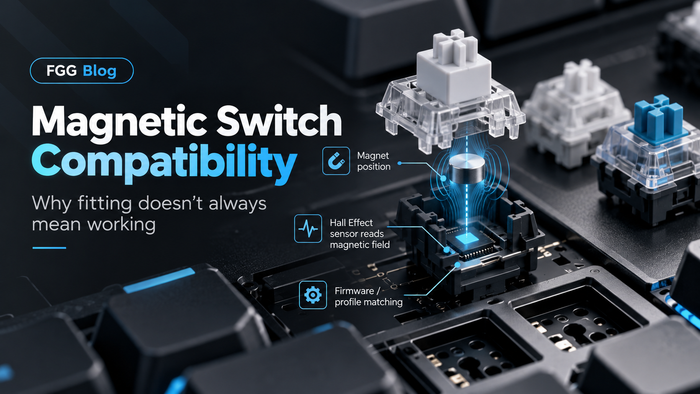
A traditional mechanical switch normally actuates when physical contacts close. A Hall Effect switch works differently: a magnet moves relative to a sensor, and the keyboard electronics measure changes in local magnetic flux density at the sensor. Firmware maps the resulting readings to an estimate of key position.
Calibration establishes or updates reference readings used to interpret key travel. Depending on the design, this may involve the released position, the bottom-out position, or other manufacturer-defined reference points. The signal-to-position mapping and any compensation are implemented by the keyboard's firmware; a user calibration routine does not necessarily measure the entire response curve.
The exact calibration process is manufacturer-specific. Some keyboards perform most of it automatically, some expose a calibration command in their desktop software or browser-based configuration tool, and others may only require user calibration after certain changes.

2. Why Does Calibration Matter on a Magnetic Keyboard?
Hall Effect keyboards often allow actuation settings measured in very small travel increments. When a user selects a shallow actuation point or a sensitive Rapid Trigger setting, the keyboard is making decisions based on relatively small changes in measured key position.
A reliable sensing reference helps distinguish intentional key movement from small variations in the measured signal. Calibration helps the firmware map sensor readings to the usable travel of each key.
It is mainly about consistency
The important word is consistency. Calibration is not an overclock and it does not increase the USB polling rate. Instead, it can help settings such as actuation distance and Rapid Trigger behave more predictably when calibration is actually required by the device.
Every key is a physical system
Even when two keys use the same switch model, small manufacturing tolerances can exist in magnets, switch housings, mounting position, total travel and sensors.
Good keyboard firmware is designed to account for these realities rather than assuming every key produces an absolutely identical raw signal.
3. Calibration vs Actuation vs Rapid Trigger vs Dead Zone
These terms are often mixed together, but they describe different parts of the keyboard's behavior.
| Setting | What It Controls | What It Does Not Do |
|---|---|---|
| Calibration | Helps establish the keyboard's reference for interpreting magnetic key travel. | Does not increase polling rate or automatically make every setting faster. |
| Actuation Point | Determines how far a key must travel before the keyboard registers a press. | Does not by itself define Rapid Trigger release distance, USB polling rate or end-to-end latency. |
| Rapid Trigger | After initial actuation, uses configurable relative travel thresholds to reset on upward movement and reactivate on downward movement. Exact behavior varies by firmware. | Does not replace correct calibration or sensible actuation settings. |
| Dead Zone | A travel region, commonly near the released or bottom-out position, in which input transitions may be suppressed to improve stability. Position and behavior vary by firmware. | Is not simply another name for actuation distance. |
If you want a deeper explanation of actuation and Rapid Trigger, see the FGG Rapid Trigger Keyboard Guide .
4. Signs Your Hall Effect Keyboard May Need Calibration Checked
Not every unusual keypress means the keyboard needs calibration. Software profiles, extremely sensitive settings, magnetic interference, switch compatibility and firmware can produce similar symptoms.
Still, calibration is worth checking when your model supports it and one or more of the following occurs:
- One key consistently seems to actuate differently from neighboring keys using the same settings.
- A key appears unable to use the expected travel range after a supported magnetic switch replacement.
- Rapid Trigger behavior feels inconsistent even after returning to conservative settings.
- The keyboard software specifically reports that calibration is required.
- A firmware update or reset explicitly instructs you to recalibrate the keyboard.
- You replaced magnetic switches and the manufacturer recommends recalibration afterward.
- A key that previously worked reliably now seems to trigger inconsistently over time even though you have not changed its settings. This can be a drift-like symptom worth investigating.
What Do People Mean by “Magnetic Drift”?
“Magnetic drift” is often used informally by keyboard users to describe a situation where a key's resting reference or measured travel appears to shift over time.
It is important not to treat drift as a diagnosis by itself. A changing reading can have several possible causes: variations in the magnetic field, small mechanical changes, changes in magnet-to-sensor geometry, temperature-dependent sensor or magnet behavior, external magnetic interference, firmware state, or a calibration reference that no longer matches the current switch behavior.
That means a key becoming inconsistent does not automatically prove that its magnet moved or that the switch is worn out. Calibration is one troubleshooting step, not a universal repair.
Practical troubleshooting tip: If a key starts behaving differently, first return that key to a conservative actuation and Rapid Trigger setting. Then check for firmware or profile changes, nearby magnetic objects, switch installation and model-specific calibration instructions before assuming there is a hardware failure.
Before recalibrating, try temporarily returning actuation and Rapid Trigger settings to a more conservative profile. Extremely sensitive settings can feel unstable even when the keyboard itself is operating normally.
5. When Should You Recalibrate a Hall Effect Keyboard?
There is no universal schedule such as “once every month.” If the keyboard works consistently, repeatedly recalibrating it usually provides little benefit.
Common situations where checking the calibration procedure makes sense include:
- initial setup when the manufacturer specifically requires it;
- after replacing supported magnetic switches;
- after a firmware reset when the software instructs you to calibrate;
- after a firmware update that changes magnetic sensing behavior and explicitly calls for recalibration;
- when troubleshooting repeatable key-position inconsistencies;
- when a previously stable key develops a persistent drift-like symptom without an obvious profile or settings change.
Simply changing RGB lighting, changing a keycap, switching USB ports or changing an actuation value normally does not, by itself, mean that recalibration is necessary.
6. How to Calibrate a Hall Effect Keyboard Safely
The exact buttons and menus vary by model, so your keyboard's manual or official configuration tool should always take priority.
The general process, however, usually follows the same logic.
- Use a stable connection. Connect the keyboard normally and avoid disconnecting it during calibration.
- Open the official configuration tool. Use the desktop software or browser-based configuration tool intended for your exact keyboard model.
- Return the keyboard to a normal resting position. Do not hold keys partially pressed unless the calibration instructions specifically ask you to.
- Start calibration and follow the on-screen instructions. Some tools may ask you to press keys through their full travel; others may perform part of the process automatically.
- Do not interrupt the procedure. Avoid unplugging the keyboard, changing profiles or rapidly pressing unrelated keys while calibration is running.
- Save or apply the result if required. Then test the keyboard using conservative actuation and Rapid Trigger settings before increasing sensitivity again.
Example: Calibration through FGG HUB
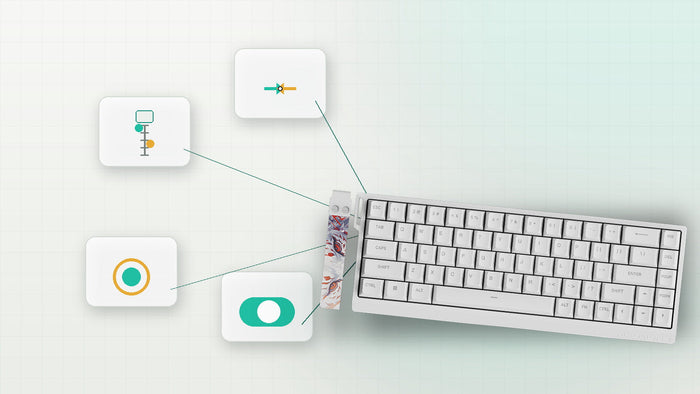
If you are using an FGG-supported MADLIONS keyboard and your exact model exposes a calibration control in FGG HUB, open the model-specific Web Driver and follow the calibration instructions shown there.
Before starting, leave the keys in their normal resting position unless the on-screen procedure tells you otherwise. Do not assume that every keyboard uses the same calibration sequence.

7. Can Calibration Improve Gaming Performance?
Calibration can improve consistency when the keyboard's current magnetic reference is inaccurate or when recalibration is required after a supported hardware or firmware change.
That can make actuation and Rapid Trigger settings behave closer to what the user expects.
It is important not to confuse that with an increase in raw keyboard speed.
Calibration does not turn a 1,000 Hz keyboard into an 8,000 Hz keyboard, and it does not reduce the hardware latency specification simply because calibration was completed.
For competitive gaming, the practical benefit is therefore better described as input consistency rather than free extra performance.
Consistency matters more at aggressive settings
A player using a relatively deep actuation point may never notice a tiny variation in measured travel.
A player using very shallow actuation and highly sensitive Rapid Trigger settings is operating much closer to the edge of accidental input, which makes stable sensing and sensible configuration more important.
8. Browser-Based Calibration and Keyboard Software
Modern magnetic keyboards increasingly move configuration into browser-based tools.
A web driver can make it easier to adjust supported features without installing a traditional desktop application, although the exact options still depend on the keyboard and firmware.
Using a Hall Effect keyboard supported through FGG?
FGG maintains a central Software & Web Driver hub for supported keyboards. Use it to find the correct configuration entry for your model instead of relying on an unrelated driver or outdated download.
You can also use the FGG Product Manuals hub to locate model-specific setup documentation and support resources.
If your keyboard exposes calibration through FGG HUB or its supported web driver, follow the instructions shown for that exact model.
Do not assume that a calibration procedure intended for one magnetic keyboard is automatically valid for another.
9. What Settings Should You Use After Calibration?
Calibration and tuning should be treated as separate steps. Once calibration is complete, start with settings that are easy to control and then gradually reduce actuation distance or the Rapid Trigger press/release distance thresholds, where supported.
| Use Case | Safer Starting Direction | Why |
|---|---|---|
| Normal typing | Deeper actuation, conservative or disabled Rapid Trigger | Reduces accidental keypresses while resting fingers on the board. |
| FPS movement keys | Moderately shallow actuation with controlled Rapid Trigger sensitivity | Balances fast movement input with stability. |
| Space / Enter / utility keys | Usually deeper than primary movement keys | Helps reduce accidental activation. |
| Very aggressive competitive profile | Only reduce values after testing a stable baseline | Extremely sensitive settings increase the chance of unintended inputs. |
If you want to understand how Rapid Trigger behaves in FPS games and how to tune it without simply chasing the smallest possible number, continue with the FGG Rapid Trigger Guide for FPS Gaming .
10. Calibration Did Not Fix It? Check These Next
Calibration is only one part of the magnetic input chain. If the keyboard still behaves strangely afterward, work through the problem systematically instead of recalibrating repeatedly.
| Symptom | Possible Area to Check | Next Step |
|---|---|---|
| Accidental movement inputs | Actuation too shallow or Rapid Trigger too sensitive | Increase actuation distance and, where available, Rapid Trigger press/release distance thresholds; then retest. |
| One key changes behavior over time | Drift-like baseline change, calibration, external magnetism, profile or switch behavior | Return to conservative settings, remove nearby magnetic objects, verify the profile and follow the model-specific calibration procedure if supported. |
| Only one replaced switch behaves differently | Switch compatibility, installation or calibration | Confirm that the switch is officially supported and correctly installed. |
| Several keys changed after firmware update | Firmware or profile reset | Check release notes and official setup instructions. |
| Settings do not appear to save | Driver, profile or firmware issue | Confirm the correct model and active profile in the official configuration tool. |
| Keyboard disconnects or stops responding | USB, cable, firmware or hardware issue | Troubleshoot the connection first; calibration is unlikely to be the primary cause. |
Still choosing a magnetic keyboard?
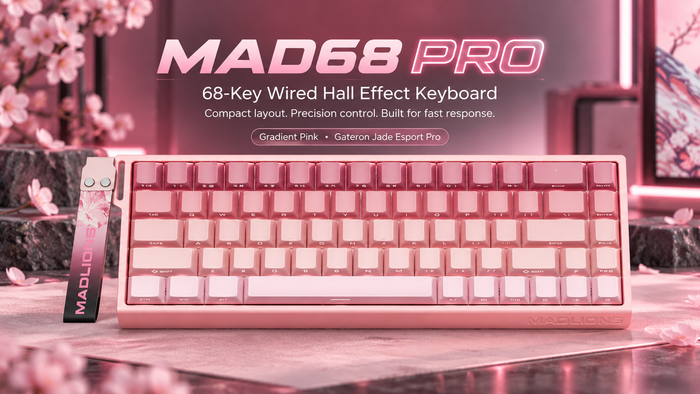
If you are comparing compact layouts, the MAD60/68 V2 provides 60% and 68-key Hall Effect options with configurable magnetic input.
The better choice is not simply the keyboard with the smallest advertised number. Layout, firmware, switch feel, software control and overall stability all matter in daily use.
11. Hall Effect Keyboard Calibration FAQ
Do all Hall Effect keyboards need manual calibration?
No. Hall Effect keyboards need a reliable magnetic reference, but the way that reference is established varies by device. Some keyboards are factory-calibrated or manage calibration automatically, while others expose a user calibration function. Follow the instructions for your exact model.
Should I calibrate my keyboard every time I turn it on?
Normally no. A working keyboard should not require manual calibration on every startup unless the manufacturer specifically documents such a procedure.
Should I recalibrate after changing magnetic switches?
Check the manufacturer's instructions. If the replacement switch is supported and the software recommends recalibration after switch replacement, perform it.
Magnetic switch compatibility should never be assumed solely because two switches fit physically.
What is magnetic drift on a Hall Effect keyboard?
The term is often used informally to describe a change in the apparent resting reference or sensing behavior of a magnetic key over time.
Possible contributors include changes in magnetic field strength, magnet-to-sensor geometry, temperature, external magnetic interference, firmware state, mechanical changes or calibration. A drift-like symptom does not identify the cause by itself.
Does calibration make Rapid Trigger faster?
Calibration does not increase the keyboard's polling rate or hardware speed. Its role is to help the keyboard interpret key position consistently so that supported Rapid Trigger settings behave as intended.
Can bad calibration cause accidental keypresses?
Inconsistent calibration may contribute to unusual input behavior, but accidental presses can also come from extremely shallow actuation, aggressive Rapid Trigger settings, unsupported switches, external magnetic interference, firmware issues or ordinary finger movement.
Test conservative settings before assuming calibration is the cause.
Does 0.001 mm precision mean I should use a 0.001 mm setting?
No. A setting increment, sensor resolution, measurement accuracy and repeatability are different quantities. An advertised 0.001 mm figure does not by itself demonstrate real-world position accuracy or mean that the keyboard supports a 0.001 mm actuation or Rapid Trigger threshold.
Real gaming settings should prioritize controllability, stable input and the player's own movement habits.
Can I calibrate through a web driver?
Some keyboards expose calibration or related magnetic settings through a browser-based configuration tool. Whether calibration itself is available depends on the exact model and firmware.
Final Takeaway
Hall Effect keyboards are powerful because they can continuously measure key travel. That same capability is why accurate magnetic sensing matters.
Calibration should be viewed as a reference and consistency tool, not a performance boost.
When your keyboard already behaves correctly, repeatedly recalibrating it is unlikely to make it faster.
When a supported switch change, firmware process, repeatable sensing problem or drift-like symptom actually calls for calibration, however, using the correct procedure can help restore predictable actuation and Rapid Trigger behavior.
Start with a correct calibration state, use sensible actuation values, and only move toward extremely sensitive settings after you have established a stable baseline.
Need to configure a keyboard supported through FGG? Visit the FGG Software & Web Driver , browse the FGG Product Manuals , or continue with the FGG Rapid Trigger Guide .
Sources & Technical References
This article combines FGG editorial analysis with independent keyboard research, manufacturer documentation and magnetic-sensor technical material. Sources are included to support the underlying Hall Effect, calibration, drift, actuation and Rapid Trigger concepts discussed above.
-
RTINGS — What Is a Hall Effect Keyboard?
Independent technical overview covering Hall Effect switch operation, magnet and sensor behavior, adjustable actuation, switch compatibility and calibration.
https://www.rtings.com/keyboard/learn/what-is-a-hall-effect-keyboard -
Gateron — Adjustable Magnetic Switches: Tuning Hall Effect Keyboards
Manufacturer technical discussion covering magnetic sensing, switch compatibility, sensor geometry, firmware calibration and recalibration after magnetic-switch replacement.
https://www.gateron.com/blog/detail/adjustable-magnetic-switches-for-hall-effect-keyboards -
Wooting — When Magnets Mess With Your Wooting
First-party explanation of how external magnetic fields can alter Hall Effect sensor readings and produce symptoms such as unexpected actuation or keys remaining active.
https://wooting.io/post/when-magnets-mess-with-your-wooting -
Wooting — Hall Effect vs TMR: Pause the Funeral
Manufacturer technical discussion covering magnetic sensor behavior, noise, signal-to-noise ratio, calibration and input stability.
https://wooting.io/post/hall-effect-vs-tmr-pause-the-funeral -
Texas Instruments — TMAG5170 Hall-Effect Sensor Technical Documentation
Semiconductor documentation discussing Hall sensor operation and temperature compensation for changes in magnetic behavior. This source supports the general explanation that magnetic sensing can vary with temperature; it is not documentation for a specific keyboard.
https://www.ti.com/product/TMAG5170
Specifications, calibration behavior and software functionality can change through firmware updates. For model-specific procedures, always follow the latest documentation supplied for your exact keyboard.